
Connect With Us
Mark Nichols
Director of Information Technology
Phone: 662.720.7254
Email: mdnichols@nemcc.edu
Connect on LinkedIn
Sarah Street
IT Technician
Phone: 662.720.7390
Email: srstreet@nemcc.edu
Allen Bullock
IT Assistant
Phone: 662.720.7885
Email: adbullock@nemcc.edu
Account Access & Security
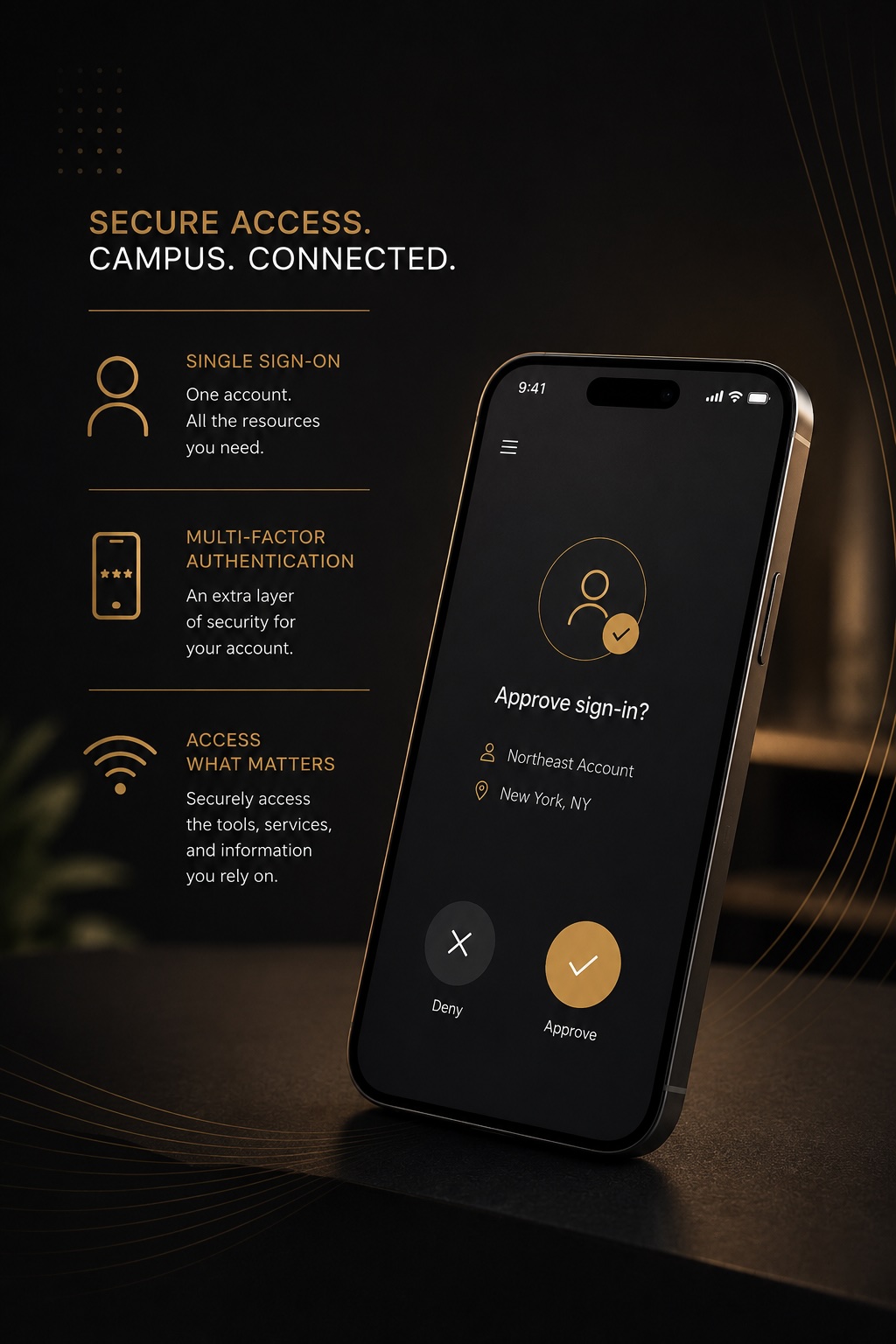
Northeast uses Single Sign-On (SSO) and Multi-factor Authentication (MFA) to provide secure, streamlined access to campus technology and online services.
With one Northeast account, students and employees can securely access Canvas, email, wireless services, and other campus resources from virtually anywhere.
One Account for Campus Services
Single Sign-On allows students and employees to access multiple Northeast systems using one secure account. Instead of remembering separate usernames and passwords for different services, users can sign in once using their Northeast credentials to access campus technology resources.
SSO is used across many campus systems including Microsoft 365, Canvas, wireless services, campus devices, and other online resources.
Email & Microsoft 365
Access Northeast email, OneDrive, Teams, and Microsoft applications using your Northeast account.
Learn More →Canvas & Online Learning
Sign in securely to Canvas and other instructional technologies using your Northeast credentials.
Learn More →Wireless & Campus Access
Use your Northeast account to connect to campus wireless networks and secure technology resources.
Learn More →Phishing & Passphrase Safety
Learn how to protect your Northeast account and recognize suspicious emails or login attempts.
Learn More →Setting Up and Protecting Your Northeast Account
Multi-factor Authentication (MFA) adds an extra layer of security to your Northeast account by requiring a second form of verification during sign-in. MFA helps protect your account even if your password is compromised.
Northeast uses Microsoft Authenticator to securely verify sign-in attempts and help prevent unauthorized access to campus systems and personal information.
The first time you sign in, you will set up Microsoft Authenticator, verify your identity, and create your Northeast account passphrase.
Download Microsoft Authenticator
Install Microsoft Authenticator on your smartphone before signing in to your Northeast account.
Learn More →Login for the First Time
Sign in using your Northeast email address and select “I don’t know my password” to begin account setup.
Learn More →Complete MFA Setup
Follow the prompts to connect Microsoft Authenticator and securely verify your identity.
Learn More →Create Your Passphrase
Create a secure Northeast account passphrase that will be used for future sign-ins.
Learn More →Download Microsoft Authenticator
Before signing in to your Northeast account for the first time, download the Microsoft Authenticator app on your mobile device.
Microsoft Authenticator is required for Multi-factor Authentication (MFA) setup and will be used to approve future sign-in requests securely.
Begin Your First Login
Sign in using your Northeast email address and select “I don’t know my password” to begin account setup.
During the first login process, you will be guided through identity verification, MFA registration, and Northeast account security setup.
Complete MFA Setup
Follow the prompts to connect Microsoft Authenticator to your Northeast account and complete Multi-factor Authentication setup.
During setup, you may be asked to scan a QR code using Microsoft Authenticator. This securely links your smartphone to your Northeast account for future verification requests.
Once setup is complete, Microsoft Authenticator will be used to approve sign-in requests when accessing supported Northeast systems and services.
Create Your Northeast Passphrase
As part of account setup, you will create a secure Northeast account passphrase that will be used for future sign-ins.
Choose a strong passphrase that is easy for you to remember but difficult for others to guess. Avoid using personal information or previously used passwords.
Your Northeast passphrase helps protect your personal information, campus systems, and online resources from unauthorized access.
Need Help with MFA or Account Access?
Students experiencing sign-in issues, MFA setup problems, or account access concerns should visit the Student Help Desk for assistance.
Faculty and staff can submit a technology support request for assistance with account access, MFA verification, or authentication issues.